Roll Army to Fight Controls Guide
Movement, interact, Shop, roll, and send-unit UI for PC and mobile.
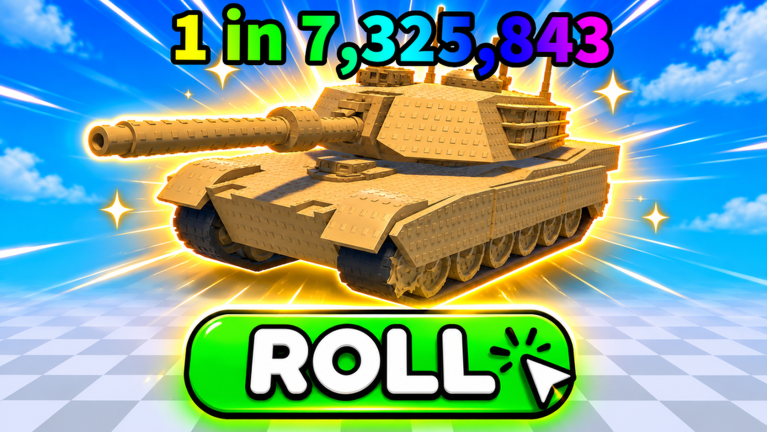
Roll Army to Fight! uses standard Roblox movement plus a few game-specific panels for rolling, shopping, and sending units. This controls guide is written for first-session players who know how to walk in Roblox but still need a clean map of every button that matters to the economy loop: roll units → cash/sec → conquer areas → upgrade luck → PvP → offline cash.
Play the experience: Roll Army to Fight on Roblox (place 121878647227079, universe 10759534802, group START=WAR). Pair this page with Getting Started for the first-hour checklist and with Codes before you spend a luck potion window on the wrong UI.
Core movement (PC)
These bindings match typical Roblox defaults. If you remapped keys in Roblox settings, use your custom binds instead.
| Input | Action |
|---|---|
| W A S D | Move your avatar |
| Space | Jump |
| E | Interact with nearby prompts / world interactables |
| Mouse | Look, click menus, confirm Shop and roll UI |
| Shift (if enabled) | Sprint / shift-lock depending on your Roblox settings |
You do not need fancy parkour to progress. Movement exists so you can reach Shop prompts, stand near interactables, and read the board while other players on the six-player server push areas. Spend mental energy on cash and luck decisions, not on movement tech.
Game UI surfaces you must find
Ignore decorative chrome until these four surfaces are muscle memory:
- Roll — spend currency to pull a unit. This is the rarity gate toward badges such as 1/10K, 1/100K, 1/1M, and 1/5M. See Rare Units and the Unit Tier List.
- Cash / cash-per-second readout — confirms that income is ticking online and that offline setup will matter when you leave (Offline Earnings, Cash Farm).
- Send / place units toward areas — the conquer control. Wrong timing here wastes the bank you need for luck (Conquer Areas).
- Shop — codes, luck upgrades, and purchases. Redeem RELEASE and INVASION here (Codes, How to Redeem).
If a tutorial arrow appears on join, follow it once. Skipping tutorial prompts often hides exactly where roll and Shop live for your client layout.
Interact (E) and mouse menus
E is for world prompts: opening stands, confirming nearby interactables, or accepting contextual actions the experience surfaces near your avatar. If nothing happens, walk closer, face the prompt, and try again—Roblox interact ranges are short.
Mouse menus drive almost every economy action:
- Click Shop entries to open the codes box and upgrade rows.
- Click roll controls only when you have a planned budget (ideally after luck upgrades and potions).
- Click send / army controls when an area is realistically within reach—not when you are mid-potion and should be rolling instead.
- Close panels fully before the next action so clicks do not land on a hidden button underneath.
A common beginner fail is rolling while a Shop modal is still open, or sending units while a luck potion timer is burning unused. Treat UI hygiene as part of Upgrade Luck and the Luck Session Planner.
Recommended first-session control flow
- Join and wait for UI to finish loading.
- Move with WASD, jump with Space if you need elevation or a prompt.
- Open Shop with the mouse → redeem live codes (Codes Hub).
- Buy an affordable luck step if cash allows.
- Use the roll UI during any active potion window.
- When income is stable, use send controls for one sensible area push.
- Before logout, confirm cash/sec is still visible and rising (Offline Earnings).
That order keeps controls tied to progression instead of random button mashing.
Mobile and touch notes
On phone or tablet, Roblox replaces WASD with an on-screen thumbstick and jump button. Interact becomes a contextual on-screen button when a prompt is in range. Menus are still tap targets:
- Pinch-zoom and camera drag can hide Shop or roll buttons—reset camera if a panel feels “missing.”
- Tap once to focus a field (codes box), then paste or type carefully; codes are case-sensitive (
RELEASE,INVASION). - Potion timers are short (~3 minutes). On mobile, close notification shade / multitasking distractions before you start a roll burst so the window is not wasted.
- If touch UI feels cramped, rotate to landscape, lower graphics slightly for clearer buttons, and avoid fighting camera lock during Shop redemption.
Mobile players can still run the full loop—including offline cash—as long as Shop, roll, and send remain reachable. Prefer shorter, planned sessions: redeem → upgrade → roll → logout, using the Luck Session Planner checklist.
Controls that matter for PvP lobbies
Servers are size 6. You will see other armies while you manage menus. Do not AFK inside Shop for an entire potion duration while rivals conquer. Practical habits:
- Finish code redeem and luck buys quickly.
- Keep camera awareness of contested areas while you roll.
- Do not start a send you cannot babysit.
- Read Defeat Players and PvP Tips once movement and menus feel automatic.
Accessibility and settings tips
- Remap keys in Roblox Settings if WASD conflicts with your layout; keep a consistent interact key so E-muscle memory still works.
- Raise UI scale if Shop text is hard to read; mis-typed codes waste time.
- Lower effects if rarity animations make you misclick the next roll.
- Shift-lock is optional—use whatever helps you face prompts and read the board.
What this page does not invent
We do not invent custom hotkey mods, executor keybinds, or fake “auto interact” scripts. For executor risk context see Scripts and Script Safety—this controls guide stays on legitimate Roblox + in-game UI only.
Practice checklist
- Move with WASD / thumbstick without losing the cash readout on screen.
- Jump (Space) and interact (E / on-screen) on at least one prompt.
- Open Shop, redeem a code path, close the panel cleanly.
- Perform one intentional roll batch and one intentional send without overlapping them mid-potion.
- Bookmark Guides Hub, Cash Farm, Rare Units, Tools Hub, and Badges.
Related reading
- Getting Started — first-session priorities after you know the buttons.
- Upgrade Luck — what to click before rolling.
- Cash Farm — income decisions once UI is clear.
- Conquer Areas — send timing.
- Codes — RELEASE and INVASION redeem targets.
- Luck Session Planner — ordered checklist for potion windows.
- Discord: discord.com/invite/tgrhZqkekt
Master the four surfaces—roll, cash readout, send, Shop—then let the rest of the wiki deepen strategy. Controls are the door; luck, cash, and conquers are the game.
Frequently Asked Questions
Quick answers for Roll Army to Fight players.
What are the basic PC controls in Roll Army to Fight?
WASD to move, Space to jump, E to interact, and the mouse for Shop, roll, and send-unit menus. Remaps in Roblox settings override defaults.
Where do I redeem codes with the UI?
Open the in-game Shop with the mouse, find the codes box, and enter RELEASE or INVASION exactly. See the Codes Hub and How to Redeem guide.
Does mobile use different controls?
Yes. Movement uses a thumbstick and on-screen jump/interact buttons, but Shop, roll, and send remain tap menus. Use landscape and clear camera so buttons stay visible.
Should I roll and conquer at the same time during potions?
No. Finish Shop and luck buys, roll during the short potion window, then send units. Overlapping menus burns timers—use the Luck Session Planner.
Are there special hotkeys beyond normal Roblox?
Core play uses standard Roblox movement plus game UI panels. This wiki does not invent executor hotkeys; stick to legitimate Shop, roll, and send controls.